Manual
Hosted Self-hosted

Hosted manual

Welcome to ProofBetter

Use this manual when your workspace is hosted at proofbetter.io. It covers the complete review workflow, workspace administration, managed billing, and the boundaries between your team and the managed service.

All users15–20 min orientationv3.0.0

What ProofBetter does

ProofBetter keeps assets, versions, contextual feedback, review stages, and approval evidence together. Your team can upload files or link supported media, invite internal and client reviewers, compare revisions, and export completion records without attaching source files to email.

  • Images, PDFs, local video and audio
  • YouTube, Vimeo, Loom, Wistia, Spotify, and SoundCloud
  • Live websites, static website copies, and code mockups
  • Standard or Guided Review
  • Protected guest links and reviewer accounts
  • Reports, Insights, completion PDF/ZIP, API, and webhooks by plan

Hosted versus self-hosted

ResponsibilityHosted workspaceSelf-hosted installation
Application, runtime, TLS, patchesManaged serviceCustomer operator
Workspace users, proofs, workflows, brandYour workspace administratorsYour administrators
Subscription or licenseRecurring managed planAnnual installation license
Recovery infrastructure and cronManaged serviceCustomer operator
Use the other manual for server work

Installation, cron, storage, recovery, migration, and release-readiness procedures live in the self-hosted manual.

Roles at a glance

RoleTypical useImportant boundary
Workspace administratorWorkspace settings, users, proofs, billingDoes not operate managed servers
ManagerClients, projects, proofs, workflows, deliveryNo server-wide settings
EditorAssigned proof work, comments, reports when entitledAccess follows visible assignments
ReviewerReview queue, comments, decisionsOnly explicitly visible proofs
ClientOne client workspace and its visible proofsCannot cross client boundaries
GuestOne expiring shared reviewPermissions come from the link

How to use this manual

  1. Search by the task you want to complete.

    Press / or Ctrl/Cmd + K, then search for a feature, role, or screen label.

  2. Follow numbered procedures in order.

    Success checks tell you what the finished state should look like.

  3. Use screenshots and GIFs as visual landmarks.

    Select a screenshot to enlarge it; replay animated walkthroughs at any time.

  4. Track launch and operating checklists.

    Checklist state is stored only in this browser.

Administrator quick start

Launch your hosted workspace

Start the 14-day Studio trial, finish the launch checklist, and make the workspace safe for real client reviews.

Workspace administrator20–40 min

Create the workspace

  1. Choose a managed plan or Start free.

    The public site sends your name, email, workspace name, intended plan, and consent through a short-lived signed handoff. Payment data is never collected by the marketing site.

  2. Create the first administrator.

    Use a unique 12+ character password. The first signup user administers this workspace; they are not the managed platform owner.

  3. Confirm the workspace slug.

    Your default address follows workspace.proofbetter.io. Custom domains require an entitled plan and verification.

  4. Sign in and open Home.

    The launch checklist appears until dismissed.

Home shows setup status, proof workload, and recent activity.

Finish the launch checklist

Success check

A staff user can sign in, a guest link opens only the intended proof, and a test invitation is delivered without exposing the original file.

Recommended first proof

Use a non-confidential image, assign yourself as reviewer, and send it to a second inbox. Test comments, markup, decision capture, link expiry, and the activity trail before inviting a client.

Try before you buy

Use the private 30-minute demo

The live demo is a real, isolated ProofBetter workspace. Email validation happens first; the countdown starts only after the six-digit code is accepted.

Prospective users30-minute sessionNo card

Start the demo

  1. Choose Try demo on proofbetter.com or Try a private 30-minute demo on the sign-in screen.
  2. Enter your name and email address.
  3. Open the validation email and enter its six-digit code within ten minutes. Check spam or quarantine when needed.
  4. After validation succeeds, the private workspace opens and the visible 30:00 countdown begins.

What to explore

  • Open the seeded Desert Bloom campaign
  • Add pins, rectangles, comments, replies, and resolutions
  • Inspect assets, versions, workflow stages, and decisions
  • Open delivery, reporting, Insights, and operations surfaces
Nothing starts while you wait for email

The validation code expires after ten minutes, but the product timer does not start until the code is accepted.

Expiration and another request

At 30 minutes the account is revoked, the demo organization is suspended, and its uploaded files plus generated review content are removed. A minimal email record remains solely to enforce one use. A repeat request alerts ProofBetter sales and sends a confirmation that someone will be in touch; it does not create another workspace.

Workspace structure

Organize clients, projects, and proofs

The record hierarchy is Client → Project → Proof → Asset → Version. Permissions can inherit down this hierarchy; a narrower proof rule wins.

Administrator or manager10 min

Create a client

  1. Open Clients and choose New client.
  2. Enter the client name, primary contact, and email.
  3. Save, then open the client detail screen to add internal notes and confirm its project/proof rollup.
  4. If a user has the Client role, assign exactly one client workspace.

Create a project

  1. Open Projects and choose New project.
  2. Select the client, name the campaign or engagement, and set status and schedule.
  3. Assign an owner and add context that should be visible to staff.
  4. Open the project to create or link proofs.

Choose proof metadata carefully

Use a stable title and reference code, accurate due date, priority, workflow, tags, and custom fields. Metadata drives filters, planning, reporting, automations, and reviewer context.

Permission rule

Editors and reviewers need an explicit visible assignment. Disabled assignments do not grant list or detail access.

Core workflow

Create a proof from any supported source

Start with the review container, then add one or more assets and their versions. Source controls appear only when enabled for the workspace.

Administrator or manager5–15 min

Create the proof

  1. Choose New proof.

    Open Home or Proofs and select the chartreuse action.

  2. Name and place it.

    Enter a title, choose the project, due date, workflow, and concise reviewer context.

  3. Choose the source.

    Upload, Media, Website, or Code.

  4. Create and verify.

    Open the workspace and check that the correct asset, stage, and access rules appear.

The v3.0.0 source picker keeps proof metadata and source choice in one flow.

Source procedures

Upload a local file
  1. Choose Upload.
  2. Select JPEG, PNG, WebP, GIF, PDF, MP4, WebM, MP3, WAV, or OGG within the workspace limit.
  3. Wait for server validation and processing; do not close the page during a resumable upload.
  4. For video, upload VTT/SRT captions after the version exists.
Add hosted media
  1. Choose Media and paste a normalized provider URL.
  2. Confirm the recognized provider: YouTube, Vimeo, Loom, Wistia, SoundCloud, or Spotify.
  3. Open the review and test playback. Some providers expose exact synchronized timing; others use the visible selected-time control.
Add a website
  1. Choose Website and paste a public HTTPS URL.
  2. Select live interactive or static snapshot and a desktop, tablet, or mobile viewport.
  3. Use Interact for the live site. For scroll-safe element markup, install the Review setup bridge on an authorized staging site or use a static copy.
Add a code mockup
  1. Choose Code.
  2. Provide the isolated HTML/CSS/JavaScript package accepted by the form.
  3. Open the sandboxed proof and verify interaction before inviting reviewers.
No arbitrary embed code

Hosted media must pass provider normalization, and website targets must pass public HTTPS/private-network protections.

Core review

Review, mark up, and discuss

The review workspace ties every visual mark and comment to a proof version, media time or range, PDF page, or website context.

Reviewer access required10 min

Read the workspace

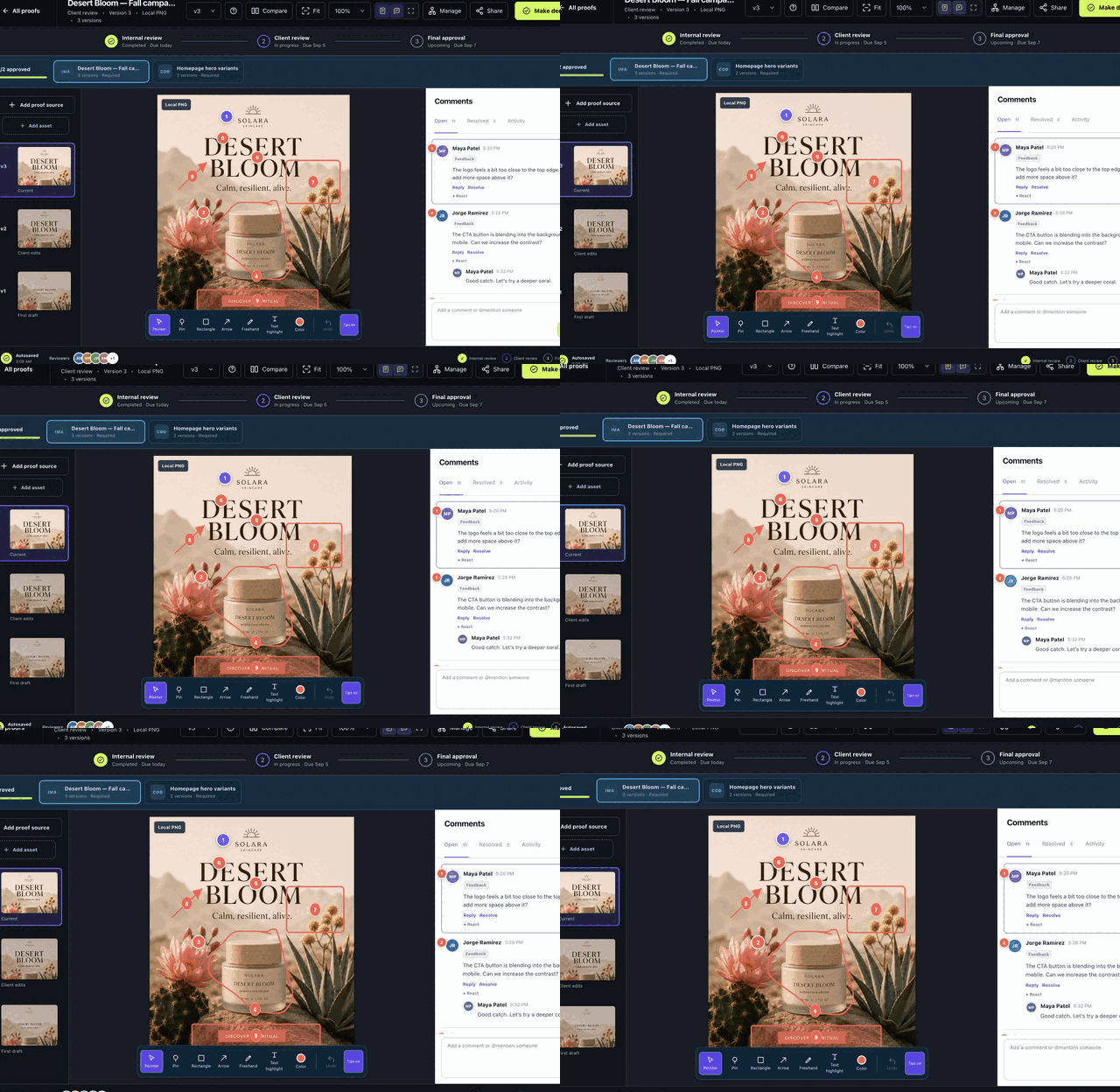
The top bar identifies the proof, stage, version, source, compare controls, panels, management, sharing, and decision action. The left rail holds assets and versions; the center is the review surface; the right panel holds quality checks and comments.

Image proof with contextual pins, comment selection, version rail, and stage progress.

Add visual feedback

  1. Choose Pointer to select existing marks, or choose Pin, Rectangle, Arrow, Freehand, or Text highlight.
  2. Select a color when needed. Draw or place the mark on the exact target.
  3. Write the comment, mention teammates, add links/files/audio, and select label or priority if you can manage feedback.
  4. Post the comment. The mark, card, location, and timeline marker navigate to each other.
  5. Resolve the thread when fixed; reopen it if a later version regresses.
Animated contextual markup walkthrough
Walkthrough: place contextual feedback and keep it attached to the work.

Control the workspace

  • Versions and Comments open independently.
  • Focus hides panels; Escape exits. Opening either panel also exits Focus.
  • Tips on/off is remembered in this browser.
  • Draft marks and comment text autosave per proof version.
  • Keyboard annotation shortcuts and visible focus styles remain available in Simple and Advanced interface modes.

Media-specific controls

Review every supported media type

Each surface preserves the same comment and decision model while exposing the controls that make sense for that medium.

Reviewers and editorsReference

Images and PDFs

Images

Fit or zoom the image, place vector markup, use version compare, and select a comment or marker to return to its exact point.

PDFs

  1. Use page controls or scroll in Review mode.
  2. Add page-anchored pins and shapes; each remains attached to its page.
  3. Rotate, measure, or enable text interaction as needed.
  4. Import supported JSON, XFDF, or FDF comments after verifying the target version.

Local video and audio

  • Play, pause, seek, change volume/speed, and use Pause + comment to capture the live playhead.
  • For local video, use frame step, SMPTE display, J/K/L transport, single-frame marks, ranges, and range looping.
  • For local audio, select the waveform or use keyboard seeking; frame-only controls are intentionally absent.
  • Upload VTT/SRT captions to video and confirm the protected track.

Hosted players

YouTube and Vimeo synchronize playhead controls; Spotify and SoundCloud use their supported player APIs. Loom and Wistia can use selected-time workflows when exact player control is unavailable. Always test Pause + comment before client delivery.

Websites and code

ModeUseMarkup
InteractClick, type, navigate, and scroll the proofHidden
ReviewInspect while seeing saved marksVisible, selection only
Mark upDraw new feedbackEnabled

On a live site, the bridge binds marks to DOM selectors and refreshes them on scroll/resize. An unbridged site can use viewport markup; use a static copy for a scroll-safe full-page result.

Revision control

Manage versions, batches, and compare

Keep revisions attached to the correct asset, carry only the feedback that still matters, and compare without losing review history.

Editors and managers10 min

Add versions and assets

  1. Open the proof and select the target asset.
  2. Choose Add proof source for a new version of that asset, or Add asset for another batch item.
  3. Mark batch assets required or optional. Required assets contribute to approval progress and stage gates.
  4. Confirm the display rail reads v1, v2, and so on within that asset.

Carry and resolve feedback

Before inviting reviewers to a new version, review open comments. Use Carry open comments when the issue still applies; otherwise resolve it on the source version. Carried feedback remains traceable rather than silently copied.

Choose a comparison mode

  • Side by side
  • Overlay
  • Swipe
  • Blink
  • Difference
  • Synchronized local media playback

Choose the current and comparison versions, then use zoom/position controls consistently. Difference mode is most useful for aligned visual assets; hosted players may have provider limits.

Review orchestration

Run Standard or Guided Review

Reusable workflows decide who reviews when; Guided Review adds a focused asset-by-asset path without replacing Standard review.

Administrator or manager15 min

Build a workflow template

  1. Open Workflow templates and choose New template.
  2. Add stages in the required order. Choose sequential or parallel behavior, deadlines, reminders, and automatic or manual handoff.
  3. For each stage, configure reviewer permissions, locking, decision rules, and completion behavior.
  4. Save and assign the template to new proofs. Editing a template does not rewrite existing proof-stage history.

Enable Guided Review

  1. Set the workspace default under Settings → Interface, or open a proof’s settings and choose Inherit, Standard, or Guided.
  2. Preview as an editor before inviting reviewers.
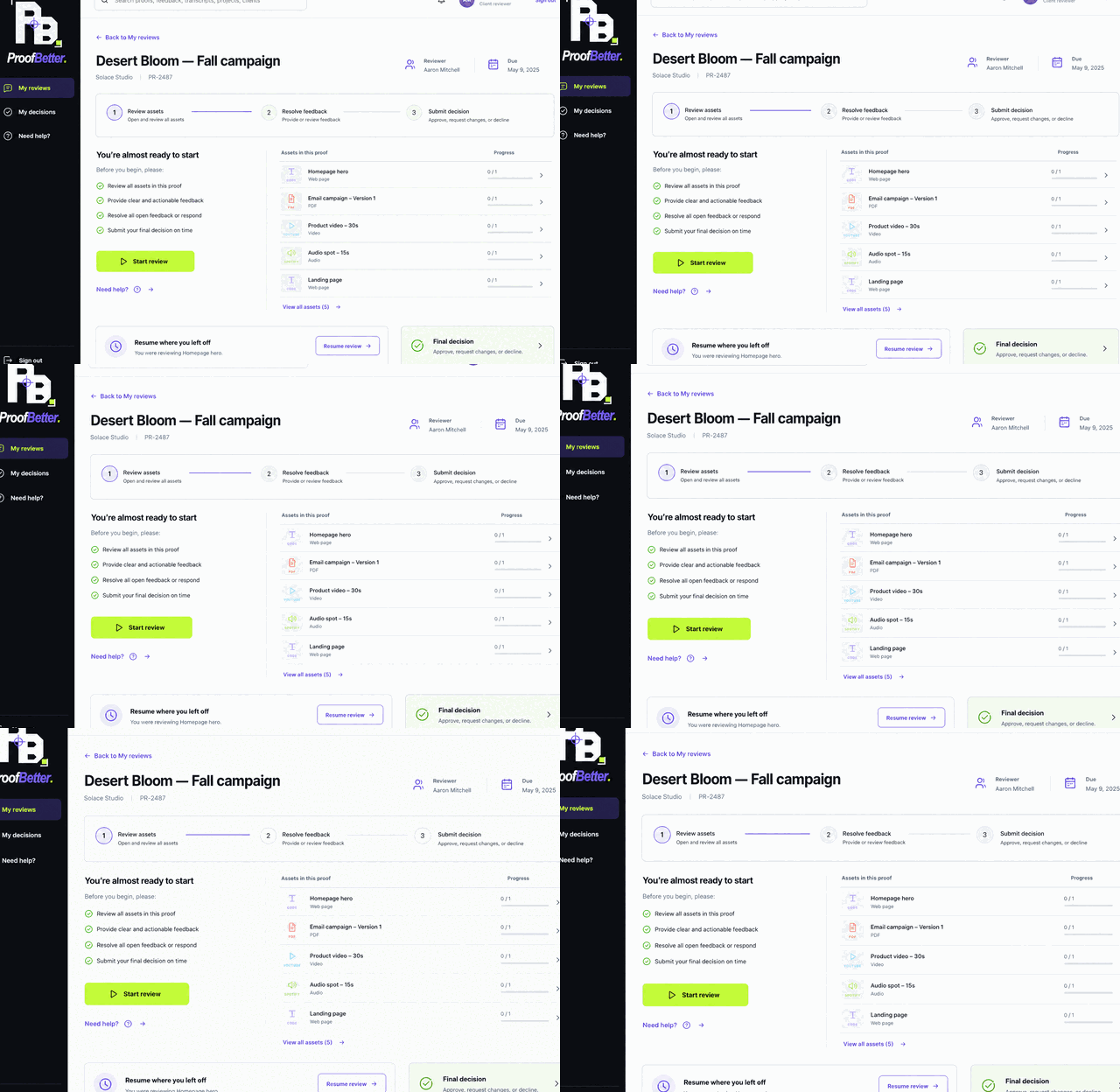
  3. Reviewers start at the overview, see required/optional assets and progress, resume the last position, and move to the final decision destination.
  4. Restore Standard or inherited behavior if the proof does not benefit from a guided sequence.
Animated Guided Review walkthrough
Guided Review keeps progress, resume state, feedback context, and final decision together.

Use review quality controls

Preflight identifies source metadata and warnings. Checklist templates are copied into proofs, and each reviewer answers independently. Decision reasons can require a note. Quorum and stage rules can prevent premature completion.

Feedback lifecycle

Turn feedback into a decision

Use threads for discussion, management fields for accountability, and formal decisions for a defensible completion record.

Comment or decide permission10 min

Create useful feedback

  • State the requested outcome, not only the problem.
  • Use a pin or shape for visual targets, page/time/range for document or media context, and @mentions for ownership.
  • Attach up to the permitted file count and size; use validated HTTPS links for external references.
  • Record an audio note in a secure browser context. Use live browser transcription or configured post-recording transcription, then edit before posting.

Manage and relate comments

Authorized users can set Feedback, Change request, Question, Verified, or Reference labels; Low, Normal, High, or Urgent priority; assignee and due date; and approval/dependency relationships. Bulk actions can resolve or update selected feedback, and Undo reverses the latest supported action.

Make and prove a decision

  1. Complete required checklist items and address blocking feedback.
  2. Select Make decision.
  3. Choose the allowed result, such as Approved, Approved with changes, or Changes requested, and supply a required reason/note.
  4. Confirm. The immutable decision, version integrity data, user, time, stage, and evidence remain in the audit record.
  5. Use the review summary, printable approval report, completion PDF, or ZIP manifest when handing work off.

Client handoff

Send a protected review

Choose the exact proof/version, recipient, expiry, and access policy. ProofBetter sends a review link rather than attaching the original file.

Administrator or manager5 min

Send from Client Delivery

  1. Choose the review.

    Select the proof and current version.

  2. Set the recipient and message.

    Enter the client email, link expiry, and a deadline-focused note.

  3. Set protection.

    Optionally enable a visible watermark, email verification, and original download. Download stays off by default.

  4. Send and confirm.

    Verify the delivery record and open the link in a private window.

The message preview and protection summary show exactly what the client receives.

Choose an access policy

ControlUse it when
Signed expiring linkLow-friction review is acceptable
Email verificationThe recipient inbox should prove possession via OTP
Required account/passwordThe client returns often or policy requires identity
SSOAn entitled enterprise workspace uses invited-account company sign-in
WatermarkDeterrence and recipient/date context are useful
Allow downloadThe recipient is authorized to receive the original

Operate active shares

Renew an expired link only after rechecking the proof/version and recipient. Revoke links when the review ends or the recipient changes. The audit trail records creation, verification, comment/decision activity, renewal, and revocation.

Protection is not DRM

No browser can prevent a viewer from photographing or recording a screen. Use authorization, expiry, download restrictions, watermarks, and audit evidence as layered controls.

Repeatable work

Automate intake and planning

Convert structured client requests into proofs, apply reusable defaults, and let routine reminders and handoffs run quietly.

Administrator or managerPlan entitlement may apply

Publish a request form

  1. Open Intake & automation and create or choose a request form.
  2. Define essential text, date, URL, and long-answer fields; require only information needed to start.
  3. Share the protected public link. Requesters do not need an account.
  4. Review a submission, choose its client/project/template, and convert it into a proof.

Create reusable proof defaults

Templates can preselect workflow, checklist, due-day offset, priority, tags, custom fields, reminders, and automation. Use metadata rules consistently so filters and reports remain meaningful.

Run safe automation

  • Choose explicit triggers and narrow conditions.
  • Use idempotent inbound endpoints and signed outgoing webhooks for integrations.
  • Review automation history and failed jobs rather than repeating actions manually.
  • Use Planning to review due dates, reviewer load, and delivery schedule before sending.

Operational clarity

Understand review performance

Reports summarize volume and status. Insights makes every metric and workload row drillable to the accessible proof records behind it.

Administrator, manager, or entitled editor10 min

Use Reports

Open a status segment or client row to view matching proofs. Export CSV only after confirming the active filter. ProofBetter formula-escapes exported values so spreadsheet software cannot execute record text as a formula.

Drill into Insights

  1. Open Insights.
  2. Select Average approval cycle, Comments per proof, Versions per proof, or Completed on time.
  3. Alternatively choose a client workload or reviewer throughput row.
  4. Search or filter by proof status in the detail view, then open the underlying proof.
  5. Export the view; the CSV matches the active scope.
Every metric, workload row, and completion item links to accessible underlying records.

Export completion evidence

Choose PDF for a human-readable completion report or ZIP for the report plus machine-readable manifest. The review summary can also export CSV or open a printable approval report.

Workspace administration

Shape the workspace experience

Use guarded settings for identity, accessible colors, interface density, proof features, review quality, website review, transcription, and sharing metadata.

Workspace administrator15 min

Set identity and interface

  1. Open Workspace settings → Workspace and set the organization name and retention preference allowed by the plan.
  2. Open Interface and choose Simple or Advanced, locale, time zone, and Standard or Guided default.
  3. Save, reload, and check desktop plus mobile navigation.

Apply brand and style

Start from one of four presets or choose the focused navigation, primary action, and supporting colors. The server blocks combinations that make navigation or actions unreadable. Upload MIME-validated logo and mark artwork, then verify the client-facing shell and email preview.

Configure sharing and SEO

Set the workspace share title, description, proof-title behavior, and optional 1200×630 PNG/JPEG/WebP social image. Protected pages remain noindex, nofollow, and noarchive even when Open Graph/X card metadata is present.

Enable only needed tools

Uploads & features sets size limits and source availability. Review quality manages checklist templates and decision reasons. Website review exposes live bridge and static-copy readiness. Transcription remains optional and may be controlled by the managed service or plan.

Access control

Manage users and security

Invite the least privileged role, scope access deliberately, require strong authentication, and use the audit trail for sensitive changes.

Administrator for usersAll users for profile security

Invite and update a user

  1. Open Settings → Users and choose Invite user.
  2. Enter the email and choose Administrator, Manager, Editor, Reviewer, or Client. Client requires one client workspace.
  3. ProofBetter sends a one-hour password-setup link. If delivery fails, correct it before sharing credentials another way.
  4. For editors/reviewers, add explicit visible proof assignments and only the permissions needed: view, comment, decide, manage, or download.
  5. Disable an account when access should stop; do not rely on removing navigation links.

Enable two-factor authentication

  1. Open Profile or Security and begin authenticator setup.
  2. Scan the TOTP secret, enter the current code, and enable.
  3. Store the eight one-time recovery codes outside the browser.
  4. If the workspace requires 2FA, complete setup before other routes become available.

Sessions, SSO, and privacy

  • Review and revoke active sessions without changing the password.
  • OpenID Connect company sign-in uses authorization code, PKCE, state, nonce, verified email, and invited-account matching when entitled.
  • Users can export personal data. Account deletion requires confirmation and obeys legal holds/deletion windows.
  • Login risk and sensitive changes produce deduplicated in-app/email alerts and audit events.
Security settings collect 2FA, sessions, support access, and related controls in one place.

Hosted service

Manage plans and billing

The current proofbetter.io checkout uses PayPal-hosted approval. Only verified PayPal events control entitlements; browser return parameters never activate a plan on their own.

Workspace administratorCommercial reference

v3.0.0 managed plans

PlanStaffStorageActive proofsNotable entitlement
Solo125 GB10Core proofing, Guided Review
Studio5100 GB50Workflows, branding, reports, automation
Agency15500 GBUnlimitedWhite label, custom domain, API/webhooks
Business301 TBUnlimitedLong audit retention, priority support
EnterpriseNegotiatedNegotiatedNegotiatedSSO, dedicated infrastructure, SLA

Unlimited client and guest reviewers do not consume paid staff seats. Confirm published prices in Plan & billing before purchase.

Start, change, or recover billing

  1. Open Plan & billing and select the plan and monthly/annual interval.
  2. Continue to PayPal hosted approval. Complete payment only on PayPal.
  3. Return to billing and wait for the verified PayPal event to synchronize plan and entitlements.
  4. Manage the recurring agreement in PayPal.
  5. Before downgrading, reduce staff, storage, active proofs, custom domains, API tokens, SSO, and retention use to the target allowance.
Billing shows usage, plan status, PayPal actions, and entitlement context. Card and wallet checkout through Stripe are disabled in this deployment.

Payment failure and suspension

The first verified failure marks the workspace past due and starts the configured seven-day grace period. Billing and payment recovery remain available. After grace, scheduled lifecycle work suspends authenticated and guest proof access. A verified recovery event restores active status.

Do not assume a browser return completed payment

If the plan does not update, check the provider payment state and contact support with the workspace name and provider reference—never send full secrets or card data.

Hosted boundaries

Know what the managed service operates

Workspace administrators own content and access. The managed platform owner operates shared delivery, storage, billing provider configuration, recovery, and deployment controls.

Workspace administratorReference

Your team operates

  • Clients, projects, proofs, and versions
  • Staff roles and visible assignments
  • Workflow and review settings within plan
  • Guest shares and delivery presets
  • Brand, interface, and social metadata
  • Plan selection and payment recovery

The managed service operates

  • Application runtime and releases
  • Wildcard workspace routing and TLS
  • Server-wide email/provider credentials
  • Protected storage and recovery infrastructure
  • Background workers and scheduled lifecycle
  • Stripe/PayPal webhook verification

A normal workspace administrator should see Workspace settings, not installation-owner Master settings, Operations Center, or server deployment controls.

Request help safely

  1. Capture the workspace name, route/screen, time, affected proof reference, browser, and exact visible error.
  2. Check whether another user with the same role reproduces it.
  3. For content access, grant explicit time-limited support authorization before staff enter customer data.
  4. Never send passwords, application keys, database credentials, SMTP secrets, payment secrets, or full license keys.

Reference

Troubleshoot common issues

Start with the user-visible symptom, then check access, plan entitlement, source readiness, and browser state before escalating.

All usersReference

Common symptoms

SymptomCheck
Proof or menu is missingRole, explicit can_view assignment, client scope, plan entitlement, account active state
Upload failsAllowed type, workspace upload limit, remaining storage, stable connection
Media cannot seekReload, test another allowed browser, note whether local or hosted provider
PDF is blankConfirm the source completed processing and try reload/private window
Website refuses to frameUse authorized staging with compatible frame policy or static snapshot
Website mark moves incorrectlyInstall Review setup bridge or use a static copy
Spotify stays ConnectingCheck browser/content blockers and outbound access to Spotify embeds
Invitation not receivedDelivery status, recipient spelling, spam/quarantine, then contact support
Workspace opens Billing onlyTrial expired, past-due grace ended, or subscription canceled

Keyboard reference

KeyAction
Ctrl/Cmd + KQuick actions and global content search
EscExit Focus or close supported overlays
J / K / LReverse/pause-forward local video transport where available
Arrow keysNavigate supported waveform, page, and control surfaces
/Search this manual

Escalation packet

Provide the workspace name, affected user role, proof reference, version/source type, UTC/local time, browser/OS, steps to reproduce, expected result, visible error, and a screenshot with unrelated client information removed.

Last check

Repeat the task in a private window or clean browser profile. If it succeeds there, clear only site data for the workspace and sign in again.

Try “send review”, “website bridge”, “decision”, “billing”, or “2FA”.